How to Change Your STC WiFi Password: A Step-by-Step Guide
Discover how to change your STC WiFi password with our easy-to-follow, step-by-step guide, ensuring your home or office network remains secure
Guide to STC WiFi Password Change
Whether you’re using an STC provided router, such as the popular stc 5g router or stc fiber router, or have purchased another one like huawei router for your home or office, it’s essential to know how to change wifi password to keep your connection secure. Regularly implementing a wifi password change helps in maintaining security from unauthorized access. In this guide, we will detail the steps for an stc wifi password change.
#1: Determine Your Router’s IP Address
Before you can dive into the stc router login to change the password, it’s crucial to determine the IP address. For many devices, especially the stc wifi router, the default might be 192.168.1.1 or 192.168.100.1. You can find this information on a label on the bottom or back of your router, in the router’s user manual, or by searching online for your router model.
Also Read: STC Quicknet Internet Packages 2023
#2: Access the Router’s Admin Page
Once you have the router’s IP address, open a web browser on a device connected to the same network as your router. Enter the IP address into the browser’s address bar and hit Enter. You should now see the login page for your router’s admin panel.
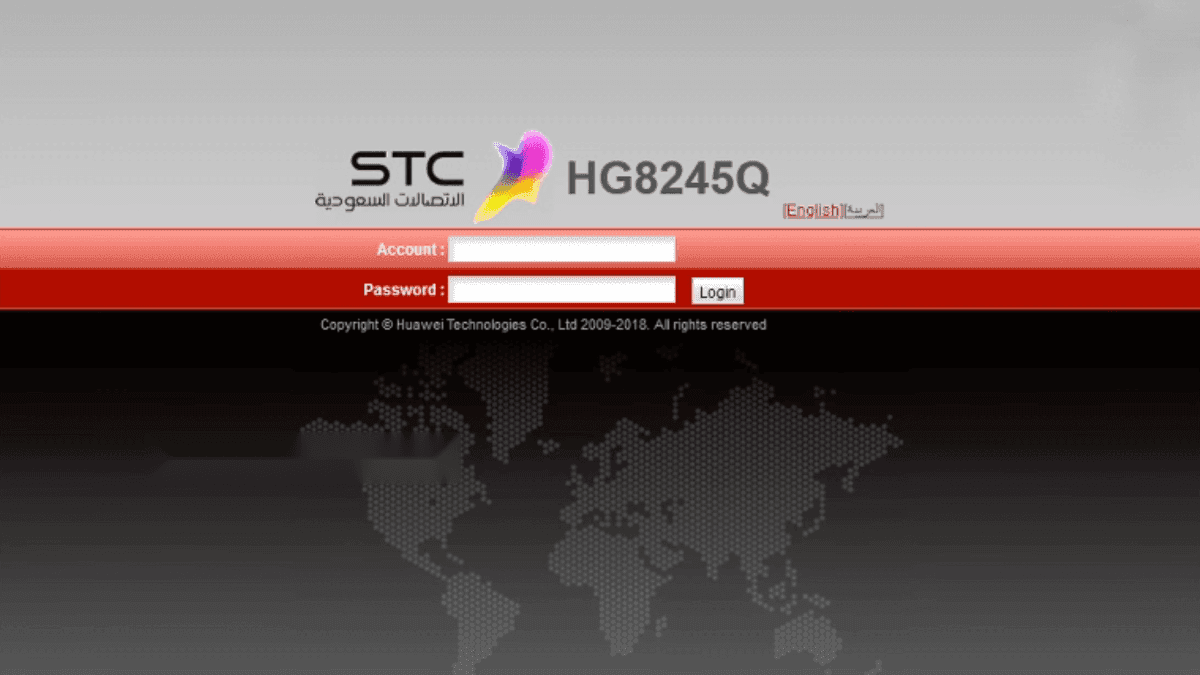
#3: Log in to the Admin Panel
To access the router’s admin panel, you’ll need the admin username and password. This could be a default, especially if you haven’t modified it after getting your stc wifi router. If unsure of the stc modem username and password, check the device label or the manual.
| Router/Modem | IP Address | Default Username | Default Password |
|---|
Enter the username and password in the respective fields and click “Log In” or “Sign In.” You should now be logged in to your router’s admin panel. Incase, if you forget your login password, you can reset it to factory default by pressing a pin into the reset port.
#4: Navigate to the Wireless Settings
Once logged in, search for tabs labeled “Wireless” or “WiFi”. This is your gateway to modify stc wifi password settings.
Also Read: How to Activate Your STC SIM: Step-by-Step Guide
#5: Locate the Password Settings
Inside the wireless settings, search for a section or submenu labeled “Security,” “Wireless Security,” or “Password.” This is where you’ll be able to modify your current WiFi password. If you see multiple options, look for the one that corresponds to your network’s security type, such as “WPA2-PSK” or “WPA3.”
#6: Change Your WiFi Password
In the password settings, you’ll see a field labeled “Passphrase,” “Pre-shared Key,” or “Network Key.” This is where your current WiFi password is stored. Delete the existing password and enter a new, strong password that is at least 8 characters long and includes a combination of letters, numbers, and symbols. It’s essential to use a unique password to ensure maximum security for your network. After entering your new password, double-check it for accuracy to avoid future connection issues.
#7: Save Your New Password
Once you’ve entered your new WiFi password, look for a “Save,” “Apply,” or “Submit” button and click on it to save the changes you’ve made. Your router may reboot at this point to apply the new settings. This process may take a few minutes.
#8: Reconnect Your Devices
After your router has finished rebooting, you’ll need to reconnect your devices to the WiFi network using the new password. Make sure to update the password on all your devices, such as smartphones, tablets, laptops, and smart home gadgets, to maintain a seamless connection.
Conclusion
Knowing how to change wifi password on your stc wifi router or stc pocket wifi is an essential step for maintaining security. By following this step-by-step guide, you can easily update your WiFi password and keep your home or office network secure. Remember to change your password regularly and use strong, unique passwords for added protection.
More in this guide
- How Can You Get a Local Number on Your International SIM in KSA — Get a local number on your international SIM in Saudi with STC's easy service, making your stay connected and hassle-free
- APN Settings Saudi Arabia: STC, Mobily, Zain, Virgin & Lebara — Get Saudi APN settings for STC, Mobily, Zain, Virgin, Lebara, Friendi and other mobile networks to fix internet access
- Home Internet in Saudi Arabia 2026: Fiber vs 5G Packages & Prices Compared — Fiber & 5G plans from STC, Mobily, Zain, Go & Salam
- How to Check How Many SIMs Are Linked to Your Iqama in 2026 — Learn how to check how many sim cards are registered on your Iqama number through the official Mutasilportal using your iqama number
- How to Check Your Saudi SIM Number Using USSD Codes — Find out how to retrieve your mobile number quickly
- How to Check Your Mobile SIM Number in Saudi Arabia — Learn how to quickly check your mobile SIM number in Saudi Arabia using USSD codes for all networks, including STC, Mobily, and Zain